


What Are the Advantages of Thermal Transfer Printing?
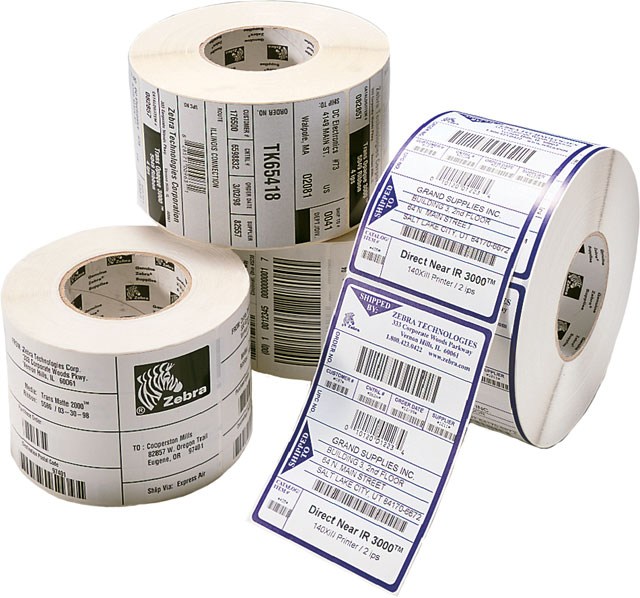 Choosing the right printing method for labels can always be confusing at first. With options for direct thermal and thermal transfer it really comes down to how long you want the label to last and in what kind of environment. Thermal transfer provides more options for longevity and durability but not without a cost.
Thermal Transfer – Advantages
- Image durability. It’s the label type needed for harsh environments.
- Superb resolution of bar codes, text and graphics.
- Longer printhead life compared to direct thermal printers.
- Can be color depending on color of label – black, blue, red, green, white.
Thermal Transfer – Disadvantages
- Dual media needed – labels and ribbons. More to purchase and store.
- Ribbons can be tricky to load.
- Must match ribbon to facestock.
- Single pass ribbon can be wasteful if little is printed on long labels.
Convenient Honeywell Scanner Data Reset Codes
Honeywell scanners provide some of the most extensive programming options from any manufacturer. Especially when using scanners for multiple purposes, it can be very convenient to keep these key scanner reset codes around.
- Factory Defaults: The scanner’s settings that are done at the factory during manufacturing.
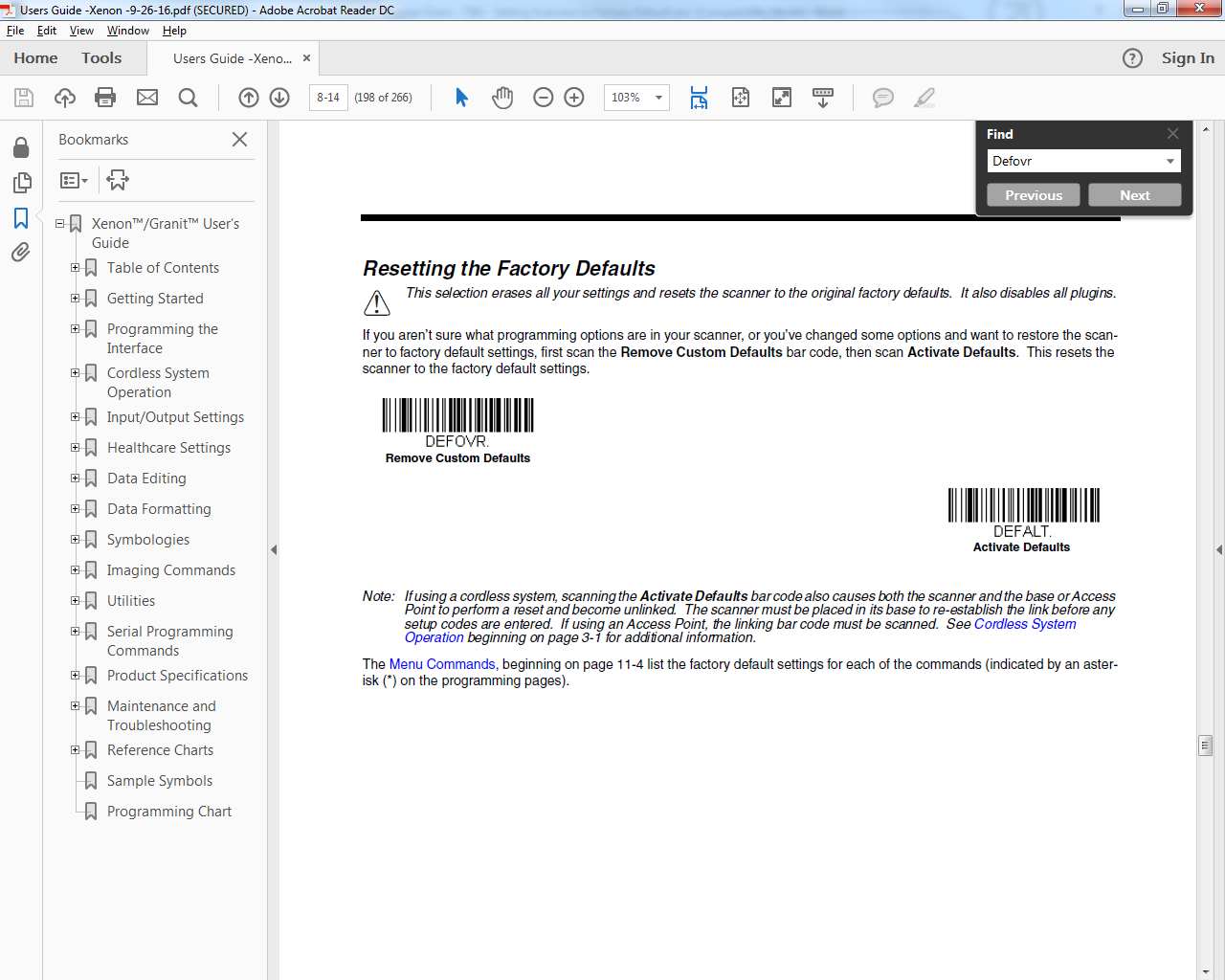
- Custom Defaults: Any changes to the scanner’s setting that one makes permanent. Making changed settings permanent will be the topic of a future Scanner Gram. Once Custom Defaults are set up/saved – they become “Factory Defaultsâ€.
- Data Formatting:Â Program the scanner to edit, delete, append scanned data.
Defalt
Scanning this barcode sets your Honeywell scanner back to factory default including getting rid of any special Data Formatting you have your scanner doing. If there are any saved Custom Defaults (See above Custom Defaults) scanning this barcode takes the scanner back to your saved Custom Defaults – not all the way to true Honeywell Factory Default.
 Â
Â
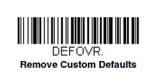
Defovr
Scanning this barcode clears any Custom Defaults that have been saved to your scanner – but that’s all it does. It does not send your scanner back to Honeywell Factory Default. Note one VERY important item – DEFOVR will disable plugins (EasyDL, Easy BCBP, etc.) and you may need to reach out to tech support to re-enable them.
So if you are not sure what your scanner has been through, and you are sure the scanner has no plugins, and you want to get it back to true Factory Default – scan Defovr then Defalt. That’s what I am going to be doing going forward when I get demo gear.
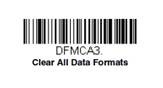
DFmca3
Dfmca3 is the command that clears any Data Formatting you’ve programmed your scanner to do. It does not clear any scanner settings or send your scanner back to Factory Default.
Comparing Honeywell Presentation Scanners
You’ve been hearing about the new Honeywell presentation scanner – the Orbit 7190g – a hybrid laser + imager scanner
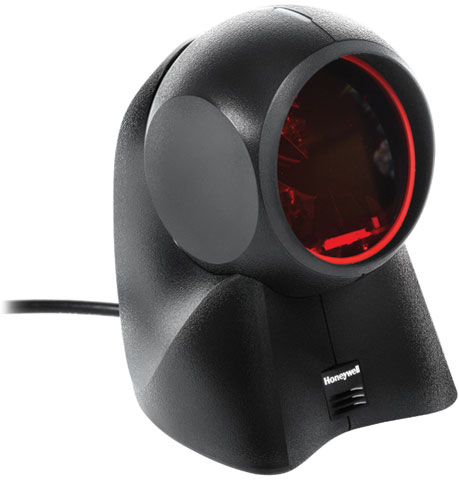
How does it compare to the Honeywell Genesis 7580g (aka the Starbuck’s scanner)?
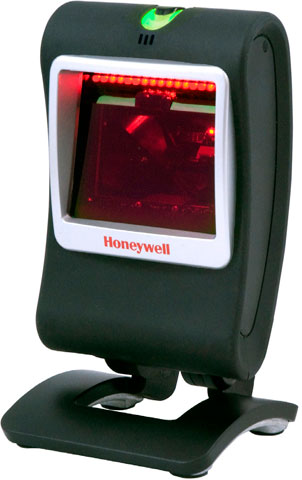
Here is how:
- If you are scanning mostly screens (digital coupons) and occasionally merchandise then you want the Honeywell Genesis 7580g. Think of the Starbuck’s use case.
- If you are scanning mostly merchandise and occasionally screens then you want the new Honeywell Orbit 7190g hybrid. Think Convenience Stores looking to start scanning digital coupons.
And if you are scanning just merchandise then you want the Honeywell Orbit 7120 (the laser only version). Don’t think of the Honeywell Orbit 7190g as a cheap alternative to the Honeywell Genesis. It’s not.
Call one of our representatives for quote on your required presentation barcode scanner.
Improve the Check-Out Experience with Zebra On-Counter Scanners
 Convenience is the driving force behind every retail experience. From quick product availability to easy coupon use and a fast checkout, every customer wants an easy and trouble free shopping experience.
The last place you want sour any customer experience is the check-out line. Keeping lines short, easy, and fast is key. A common overlooked component to every point-of-sale system is the barcode scanner. Many businesses opt for the least costly barcode scanner not realizing how it may effect the overall experience. The sooner items are scanned, the faster a customer can be on their way.
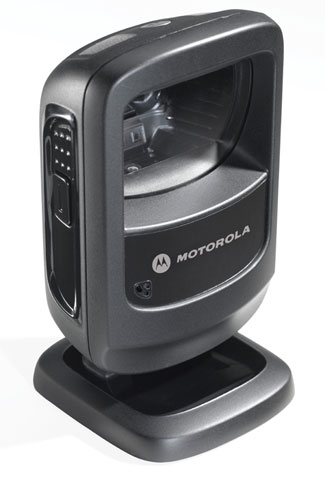
Where you would once see a basic 1D laser scanner, today the use of 2D Imagers like the Zebra DS9208 has become a more capable solution. Imagers require less aiming and provide faster reading on printed product barcodes but can also read 2D codes from mobile coupons, mobile gift and loyalty cards, boarding passes and even theater tickets. The DS9208 can even read barcodes off of a phone screen.
The DS9208 provides all the features you need to keep your workers productive, industry-leading scanning speed, true point-and-shoot scanning simplicity ‘ no need to align bar code and scanner, and hands-free and handheld flexibility.
Barcoding Software for Every Business
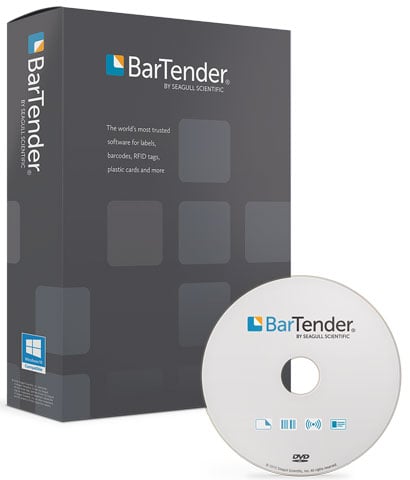 No matter your business size, barcodes are a part of everyday operations from inventory and asset tracking to any retail check-out.  A barcode is a straight-forward and accurate means to track anything through whatever process you may need. Depending on where in the product chain your business may be, some items may have barcodes already but more often than not you’ll need a flexible barcoding software to make the specific types of barcodes you need.
A it’s most basic, a barcode software will allow you to design and print a barcode with the specific data you need. It could be a simple product number, a unique asset ID, or shipping details for a package. Some barcoding software will provide additional features like the ability for 2D or stacked barcodes as well as automation capabilities from a database or Excel. No matter how simple or integrated of a software you may need, there is a barcoding software solution that can be set-up to accomplish any goal.
Key Barcode Software providers
For assistance finding the right software for your business labeling needs, contact one of our printing specialists at Barcodes, Inc.
Scanning One Barcode Within a Bunch
To make sure you scan the intended barcode when a bunch of barcodes are bunched together – you have Aimer Delay (coupled with Centering) and you have CodeGate (coupled with Centering) – which we have discussed. There is another scanner feature that addresses this problem – “Laser Aimer – Scanning Durationâ€. It’s a feature in the Honeywell Granit 1280i User Guide, but it also works with other Honeywell area imagers – the Xenon and the other Granit Series.
Here is how this feature works once the feature is turned on:
- Pull the trigger 1x. The aimer turns on for X number of seconds which you preprogrammed when turning on the feature
- It will also scan if you have it aimed at a barcode.
- If it’s not aimed at a barcode it will give you X seconds to aim the scanner & pull the trigger before the aimer turns off.
Here is a one minute video that demonstrates what I tried to explain:Â Â https://vimeo.com/209922345
You really need to test this! It’s awesome. Here are the directions for testing it.
- Scan the below barcode

- Then go to the back of the Honeywell Xenon/Granit User Guide – page 264 (Programming Chart) – and scan 5000 (5 seconds).
- Then on page 265 scan “Saveâ€.
Windows CE and Windows Embedded Handheld End of Life Cycle
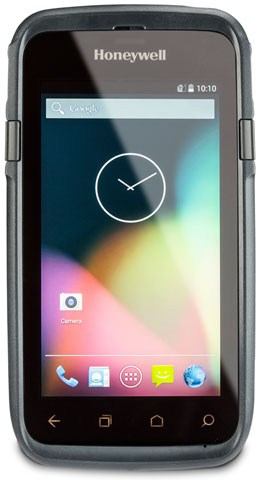 There is no need to panic just yet but any business that is currently using devices with Windows CE or Windows Embedded Handheld should start to plan for the future. Starting in 2018 through 2020, Microsoft is phasing out support of their Windows Embedded Operating Systems you find on many mobile devices. Windows-based OS are very common especially in the case of more rugged handheld devices, so as you replace these devices you will want to consider changing to some of the alternate OS to future-proof your investment.
- June 10, 2018 – Windows Embedded CE 6.0 will be End of Life
- June 9, 2019 -Â Windows Embedded 8.1 Handheld will be End of Life
- January 14, 2020 – Windows Embedded Handheld 6.5 will be End of Life
3 years till 2020 isn’t really that far away. Preparing your upgrade strategy now will prevent a lot of headaches later and won’t slow down your business.
How to Increase a 2D Imager’s Scanner Read Range
 Want to know how to increase a 2D imager’s scanner read range? Here’s a couple simple solutions:
- Print a bigger and better quality 1D barcode OR move to a “smaller footprint†2D data matrix barcode.
- There is limited tweaking that we can do to improve depth of field. If you tweak one thing you affect something else – like speed or the scanner’s ability to read bad barcodes.
- Sometimes in a controlled environment you can tweak exposure settings which may help. This is something that has to be done under the hood – nothing in the manual on this. But for it to have any affect, you need controlled/consistent lighting, which is not something you find in a warehouse.
Check out our 2D barcode scanner selection or contact one of our representatives for assistance on your scanning solution.
How to Confirm and Update the Firmware of your Honeywell Scanner
To get the most out of your scanner, having the latest firmware is key.  Here is a quick and easy way to see what version of firmware you have on your Honeywell scanner and/or your scanner’s CCB (charge and communications base).
Open Word (so you can see what you scan) and scan this barcode:
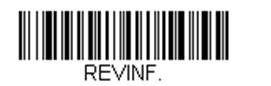
Your scanner’s firmware number shows up as “Software Part Numberâ€.  See below results from a scan from a Granit 1911i. There is separate firmware for the scanner and its base.
- Product Name: Industrial Charge & Communication Base
- Boot Revision: : 2734
- Software Part Number: BK000121AAA
- Software Revision: $ProjectRevision: 3952
- Serial Number: 13126B1ABD
- Supported IF: Standard
- PCB Assembly ID: 000000
- Product Name: 1911i Industrial Wireless Area-Imaging Scanner
- Boot Revision: : 2734
- Software Part Number: BJ000144AAA
- Software Revision: $ProjectRevision: 4467
- Serial Number: 13128B031F
- Supported IF: Bluetooth
- PCB Assembly ID: 000000
- Engine Firmware Type: N/AÂ Â Revision: N/AÂ Â Serial Number: N/AÂ Â Checksum: N/A
Latest firmware versions can be found on our external website on each scanner’s web page. You’ll have to drill down a bit, but it’s there.
To load the latest firmware you’ll need EZConfig – our free scanner configuration tool. See below for instructions on loading new firmware onto a Honeywell Xenon 1902g
How to load new firmware onto a Xenon 1902g.
- You will need to update firmware for both the scanner and the charge/communication base.
- Save .MOC firmware files for both the charge/communication base and the scanner (two .MOC files) to your hard drive. You can get them from the scanner’s webpage - https://aidc.honeywell.com/en-US/Pages/Product.aspx?category=wireless-barcode-scanner&cat=HSM&pid=1902 - under the “Firmware†section.
- Download EZConfig (our free scanner configuration tool) or log into the web version. Both can be found here: https://country.honeywellaidc.com/en-AP/Pages/Product.aspx?category=device-management-software&cat=HSM&pid=ezconfig
- Connect your charge/communication base (with scanner inserted) to your computer via USB.
- Open EZConfig.
- Click “Connected Deviceâ€. See below.
- Select “Update Firmwareâ€. See below.
Note: If you use the version of EZConfig that sits on your PC, it may tell you that your scanner has the latest version of firmware when you actually don’t. Always check the scanner’s external webpage for the latest.
Another Note: For Bluetooth Scanners – except for the Honeywell 8670 back-of-the-hand Bluetooth Scanner – you’ll need to update both the base (CCB) and the scanner’s firmware. lt’s always best to load the firmware on the scanner first then the CCB.
Customize Your Imager’s Scanning Using Honeywell’s Centering, Aimer Delay, and CodeGate Features
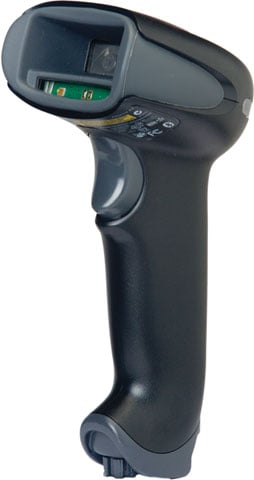 With all imager based scanners, the default decode mode is the full area of the decode window, so it will decode whatever barcode it sees first. This makes it difficult sometimes to target a specific barcode when the barcodes are close together. We can help using the below features:
- Centering(AKA pick list mode or center decode): This feature narrows the scanner’s field of view to make sure the scanner reads only those barcodes intended by the operator.
- Aimer Delay:Â Turns on the aimer for a split second before the scanner scans. This allows time for the operator to position the scanner over the specific barcode before the barcode is scanned.
- CodeGate: Similar to Aimer Delay except the aiming beam is on all the time, but scanner won’t scan until scanner button is pressed or specific time passes.