


Speed Up Checkout With the Epson TM-m50II POS Receipt Printer
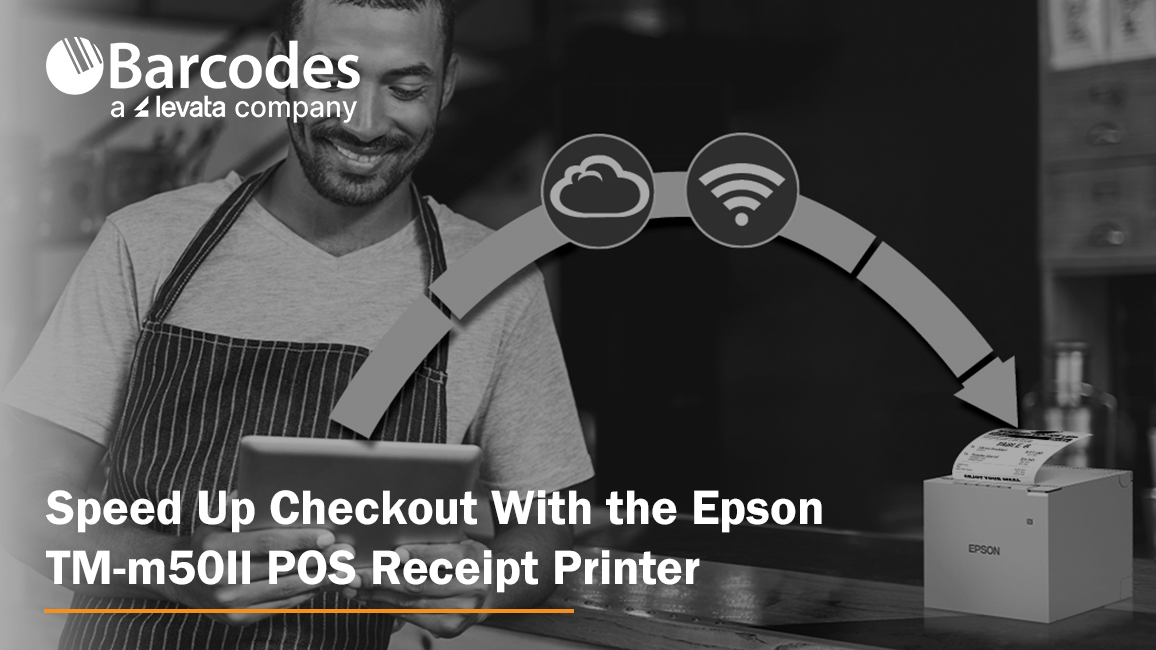
A reliable POS receipt printer keeps retail and hospitality transactions moving. When checkout gets busy, businesses need a printer that prints fast, connects to modern POS systems and holds up to daily use.
The Epson OmniLink TM-m50II brings speed, connectivity and a compact design to point-of-sale environments. It prints at up to 500 mm/sec, works with traditional and mobile POS systems and offers flexible connectivity options. That makes it a strong fit for high-volume retail, restaurant and hospitality counters.
High-Speed Receipt Printing for Faster Transactions
Slow receipt printing adds time to every transaction. During busy periods, even small delays can mean longer lines and frustrated customers.
The TM-m50II is a 3-inch direct thermal receipt printer that prints at speeds up to 500 mm/sec. It suits businesses where fast checkout and high transaction volume are top priorities. Epson bases that top speed on approved Epson paper, so use recommended media to get the most from it.
Direct thermal printing also means no ink or toner. Paired with its speed, that keeps receipt printing simple in demanding POS environments.
Compact POS Receipt Printer for Tight Counters
Checkout areas keep getting smaller. Tablets, barcode scanners, payment devices and other peripherals all compete for counter space.
The TM-m50II measures approximately 127 x 128 x 129 mm and weighs 2.87 pounds. Its small, modern design fits tablet-based mobile POS setups and traditional counters alike.
It also supports front-exit and top-exit receipt configurations. That gives businesses more flexibility in deciding where the printer sits and how receipts come out. The IPX2-rated enclosure offers basic protection against dripping water, which helps in busy retail and hospitality settings.
Flexible Connectivity for PC-POS and mPOS Systems
POS environments are not one-size-fits-all. Some businesses still run PC-based POS systems. Others are moving to tablets, mobile devices and cloud-based applications.
The TM-m50II supports both with built-in serial, USB and Ethernet connections, plus an optional Wi-Fi interface. That makes it a fit for traditional POS installations and modern mobile POS environments.
The printer also includes a USB host port for connecting compatible USB devices. For businesses upgrading their POS hardware, that flexibility can make it easier to tie the receipt printer into the rest of the checkout system.
Support for Cloud-Based POS and Online Ordering
POS no longer stops at the checkout counter. Web-based POS applications, online ordering and remote printing are becoming standard parts of retail and hospitality operations.
The TM-m50II supports Epson ePOS Print, which lets businesses print from web-based applications. It also supports Epson Server Direct Print, which can pull print jobs directly from the internet.
That helps businesses that take online orders. Instead of relying only on a locally connected POS computer, they can build receipt and order printing into more connected workflows.
Built for High-Volume Retail and Hospitality
A POS receipt printer has to perform all day, every day. The TM-m50II is built for that kind of use in high-volume retail, restaurant and hospitality settings.
Epson rates the printhead for up to 200 km of printing and the auto cutter for up to 2.2 million cuts. The printer also comes with a 4-year limited warranty, which adds support for a critical piece of POS hardware.
At a busy checkout, restaurant counter or hospitality workstation, the goal is the same. Receipts that print when they should.
Reduce Receipt Paper Usage
Operating costs add up fast in high-volume POS environments. According to Epson, the TM-m50II paper-saving technology can reduce paper usage by up to 49%.
Less paper means fewer roll changes and lower paper consumption over time. For businesses printing thousands of receipts, even modest savings add up.
Epson TM-m50II Specifications at a Glance
| Feature | Epson OmniLink TM-m50II |
| Print method | Direct thermal |
| Print speed | Up to 500 mm/sec with approved Epson paper |
| Resolution | 180 x 180 dpi |
| Paper width | 80 mm (3-inch) |
| Connectivity | Built-in serial, USB and Ethernet; optional Wi-Fi |
| Receipt exit | Front or top |
| Size and weight | Approx. 127 x 128 x 129 mm; 2.87 lb |
| Durability | Printhead rated up to 200 km; auto cutter rated up to 2.2 million cuts |
| Water resistance | IPX2-rated enclosure |
| Paper savings | Up to 49% less paper usage, according to Epson |
| Warranty | 4-year limited warranty |
Why Choose the Epson TM-m50II POS Receipt Printer?
The OmniLink TM-m50II packs the features businesses want from a modern POS receipt printer into a compact design. It is a strong option for businesses that want:
- High-speed printing: Print receipts at up to 500 mm/sec.
- Compact design: Save counter space with a small, modern enclosure.
- Flexible connectivity: Connect through serial, USB, Ethernet or optional Wi-Fi.
- mPOS compatibility: Support tablet-based and mobile POS environments.
- Cloud printing: Use Epson ePOS Print and Server Direct Print.
- High-volume reliability: Rely on a durable printhead, auto cutter and 4-year limited warranty.
- Paper savings: Reduce paper usage by up to 49%.
- Flexible installation: Choose front- or top-exit receipts to fit your workstation.
Best for: High-volume retail, restaurant and hospitality counters that need fast printing in a small footprint.
Buyer’s tip: Match the connection to your POS setup. Serial, USB and Ethernet are built in, but Wi-Fi is an optional interface. Confirm your POS software works with the printer before you buy.
Frequently Asked Questions
Does the Epson TM-m50II need ink or toner?
No. It uses direct thermal printing, so it prints on heat-sensitive paper and needs no ink or toner.
Does the TM-m50II work with tablet-based POS systems?
Yes. Epson designed it to support both traditional PC-POS and mPOS systems. Check that your POS app supports the printer and the connection type you plan to use.
Does the TM-m50II have Wi-Fi?
Wi-Fi is available as an optional interface. The printer includes serial, USB and Ethernet connections built in.
Can it print online orders and web-based POS receipts?
Yes. It supports Epson ePOS Print for web-based applications and Epson Server Direct Print for online ordering and remote printing.
What warranty comes with the TM-m50II?
Epson backs the printer with a 4-year limited warranty.
Upgrade Your POS Receipt Printing
Your receipt printer should not be the bottleneck at checkout. The Epson OmniLink TM-m50II delivers the speed, connectivity and reliability that modern retail and hospitality environments need. Its compact design also makes it easy to fit into existing workstations.
Ready to speed up checkout? Explore the Epson OmniLink TM-m50II POS receipt printer at Barcodes, Inc.
Contact Barcodes, Inc. to learn more and get help finding the right POS printing solution for your business.
How to Choose a Food Label Printer for Retail and Food Prep
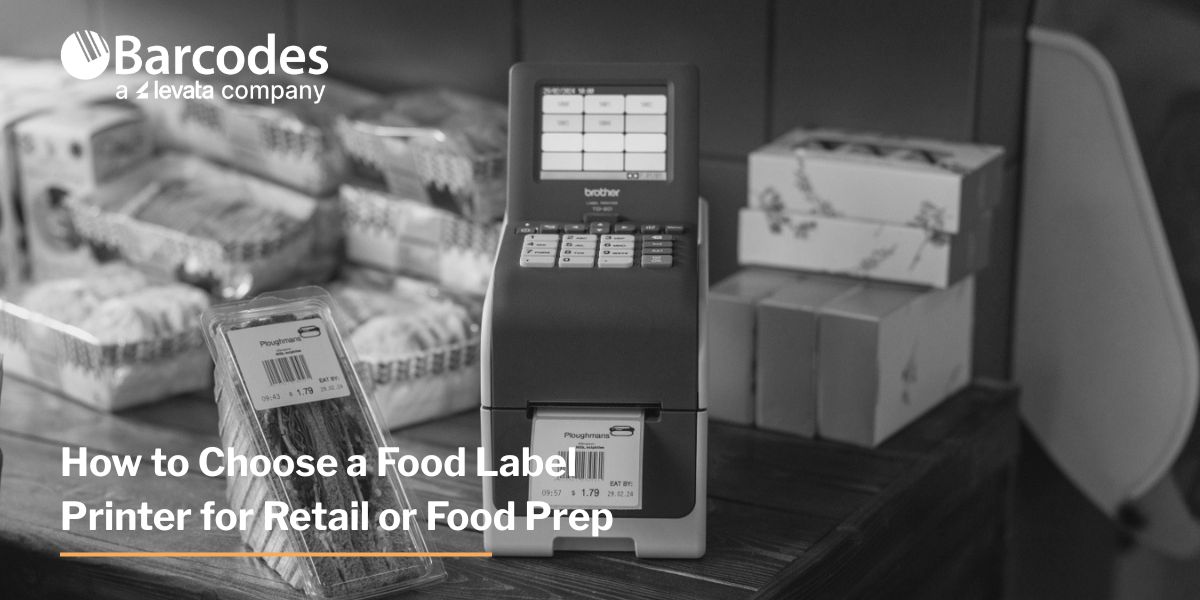
A food label printer should match the information you print, the container you label, and the conditions that label must survive. For grocery delis, convenience stores, restaurants, and meal-prep businesses, choosing the right combination of printer, labels, and software helps keep product information readable and daily workflows consistent.
Start with your operation’s labeling tasks, then compare equipment.
Which food labels does your operation need?
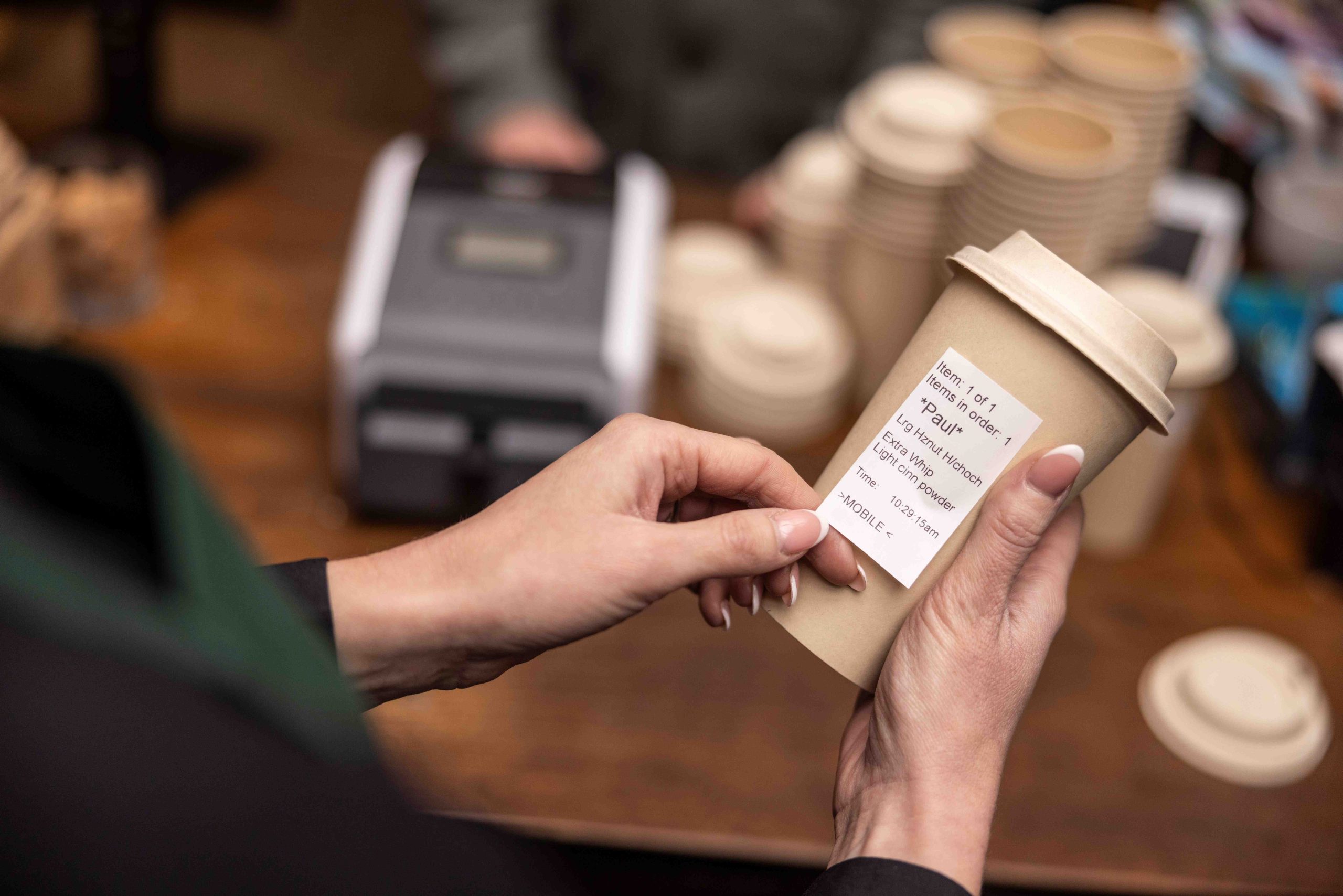
Separate customer-facing food labels from internal prep labels and order labels. Each serves a different purpose and may need a different template, size, or adhesive.
| Application | Information to plan for | Selection priority |
| Grab-and-go meals | Product name, ingredients, allergens, net quantity, business details, nutrition when applicable | Room for readable consumer information |
| Kitchen prep and rotation | Item name, preparation/opening date, discard date, employee or batch reference | Quick printing; removable or dissolvable media for reusable containers |
| Pickup and delivery | Order identifier, customer name, modifiers, handling instructions | Printing at the packing station; suitable packaging adhesive |
| Retail markdowns | Product identifier, revised price, relevant date information | Alignment with POS pricing and inventory records |
This table is a planning aid; required information varies by product and jurisdiction. In the U.S., FDA guidance on retail allergen labeling confirms that foods packaged at retail for sale must declare major allergens they contain, including sesame.
Which printing method and label format should you choose?
Print method and label format are separate decisions. Direct thermal and thermal transfer describe how an image is produced; die-cut and linerless describe the label stock.
| Option | Practical fit | What to verify |
| Direct thermal printing | Short-use prep, order, and fresh-food labels; no ribbon needed | Readability throughout the label’s life and exposure conditions |
| Die-cut labels | Consistent sizes for batch printing and packaged-food templates | Label dimensions, adhesive, and peeler compatibility |
| Linerless labels | Variable-length labels with no backing liner to discard | A linerless-capable printer and approved media |
Refrigeration alone does not determine the print method. Cold-rated direct thermal media can work in appropriate applications; evaluate the complete printer-and-label combination.
Check both minimum application temperature—when the label is attached—and service temperature range—conditions after application. Also test condensation, container texture, grease, and removal requirements. A label rated for frozen storage may still need application to a warmer, dry surface.
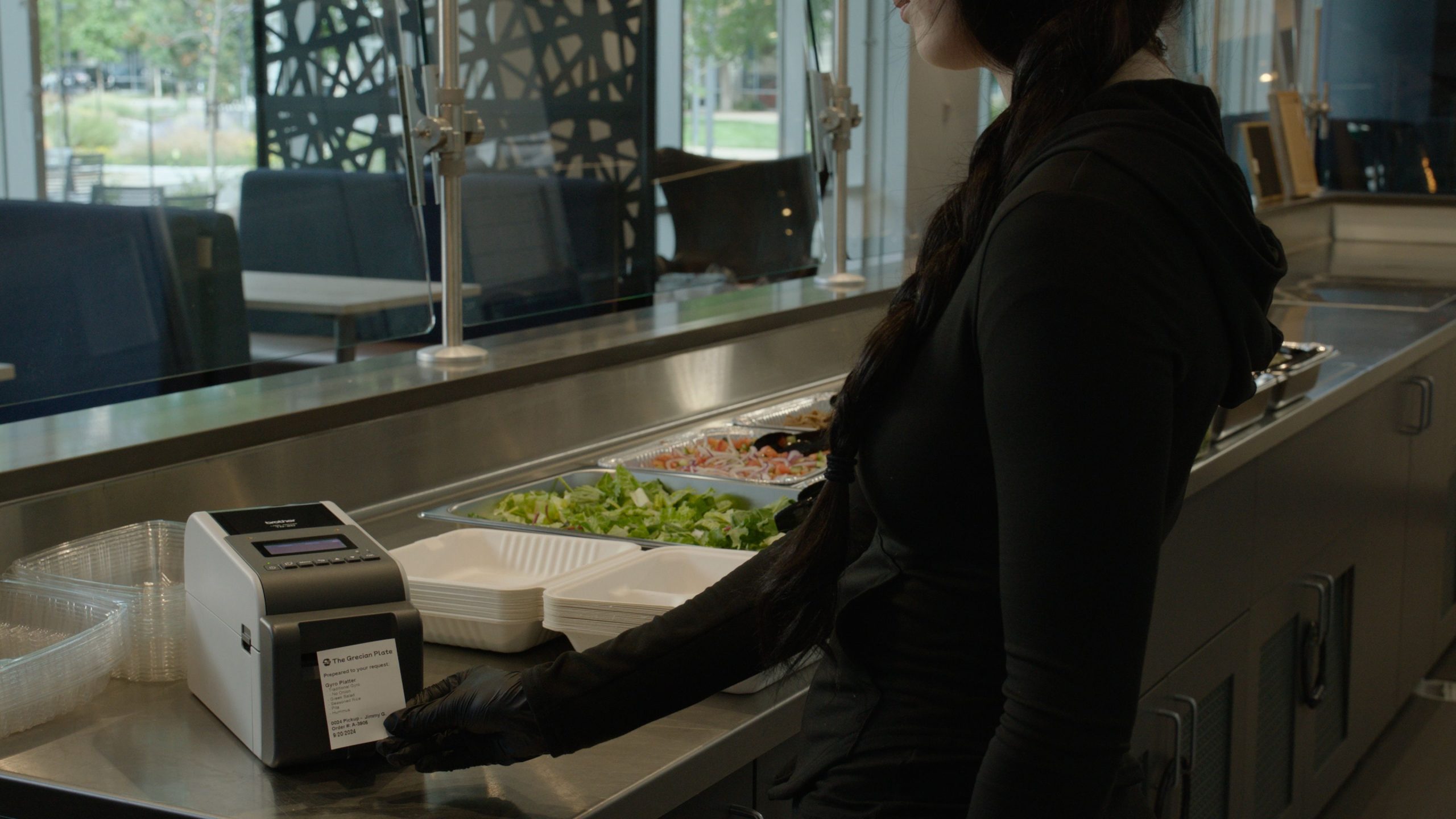
How do Brother TD 2300 and TD 4 Direct Thermal Desktop series printers compare?
The Brother TD 2300 Desktop Thermal Printer series suits compact prep stations and smaller labels. The Brother TD 4 Desktop Thermal Printer series provides more space for ingredient lists and other packaging information, with fast speeds to keep up with your workflow.
| Selection factor | Brother TD 2300 Series | Brother TD 4 Series |
| Label-size class | 2-inch class | 4-inch class |
| Print method | Direct thermal | Direct thermal |
| Resolution | 203 or 300 dpi, by model | 203 or 300 dpi, by model |
| Maximum series speed | Up to 6 inches/second | Up to 8 inches/second |
| Connectivity choices | USB; network and wireless options on selected models | USB; network and wireless options on selected models |
| Workflow fit | Smaller prep, rotation, and order labels | Larger packaged-food labels and broader media needs |
The TD 2300 series supports direct thermal printing with resolutions up to 300 dpi and offers USB, Wi-Fi®, and Bluetooth® connectivity options. Depending on the configuration, features can include a battery base, cutter, tablet mount, or peeler.
With a compact footprint and a splash and spill resistant keypad, these printers can be integrated into a variety of food-preparation and retail environments.
For applications requiring larger labels or fast print speeds, 4-inch thermal printers provide additional capacity and flexibility.
Brother’s TD 4 series supports direct thermal printing, with print speeds of up to 8 inches per second and resolutions up to 300 dpi. USB, Wi-Fi®, and Bluetooth® connectivity options allow the printers to integrate with existing systems and devices.
Both the TD 2300 and TD 4 are available as linerless models and media. Brother linerless media improve productivity and environmental impact – reduce waste, accelerate labeling, and improve workplace efficiency all while helping lower costs.
Their compact design and modular options can also make it easier to deploy printers throughout a workplace or share them among multiple users.
How can you prevent incorrect allergen and date labels?
Control the data feeding the printer. A sharp label can still contain the wrong recipe, allergen statement, price, or date.
Build these controls into your food labeling solution:
Use approved recipe records. Review ingredient and allergen information whenever recipes or supplier ingredients change.
Control templates. Restrict edits to approved users and remove outdated versions from every station.
Validate date calculations. Configure prep and discard dates using approved food-safety procedures.
Retain batch references. Connect printed identifiers to records that help staff locate affected ingredients or products.
Keep consumer quality dates separate from kitchen discard instructions. USDA explains that “Best if Used By” indicates quality; it is not a safety date. A printer cannot establish safe shelf life or replace temperature control and allergen-management procedures.
What should you test before buying a food label printer?
Run a pilot using your actual containers, software, staff, and busiest labeling period. Measure the entire process from selecting an item to applying its label.
Readability: Print your longest ingredient list and scan barcodes with the devices used at checkout or receiving.
Adhesion: Check labels after refrigeration, condensation, handling, and the intended storage period.
Integration: Verify item data, prices, dates, drivers, and connections from your existing application.
Placement: Keep equipment away from direct heat, steam, and cleaning spray; confirm power or optional battery arrangements.
Operating cost: Compare labels, ribbons where applicable, cleaning, reprints, roll changes, and staff time.
Sustainability: If your organization seeks out eco-friendly solutions, consider a linerless label printer model to reduce landfill waste by eliminating the label backing.
Track labels per minute, reprint rate, roll changes per shift, and labeling time per item. These measures provide a clearer buying comparison than print-engine speed alone. For detailed barcode layout guidance, use Barcodes, Inc.’s label design best practices.
Where can you find the right food labeling solution?
Barcodes, Inc. can help match Brother printers, compatible labels, and software to your workflow. Contact our team with your label dimensions, daily volume, container samples, and storage conditions to discuss a suitable configuration.
FAQ: What else should you know about food label printers?
Can one printer handle several food label templates?
Yes, if its software and media support them. Standardizing label sizes can reduce roll changes between tasks.
Can you print food labels without a PC?
Selected Brother TD 2300 configurations support standalone operation. Confirm the exact model and template workflow.
Are ordinary sticky labels tamper-evident?
Not necessarily. Select packaging labels designed to reveal interference and test them on your actual container.
Does linerless printing eliminate label waste?
It eliminates backing-liner waste. Incorrect prints, unused labels, and roll cores still require management.
Keep Food Moving Safely From Prep to Plate
Food labeling is a critical part of the food-safety process. The right labeling solution can help businesses provide customers with important information while supporting traceability, regulatory compliance, operational efficiency, and brand consistency.
As food retail and preparation models continue to change, flexible on-demand printing can help businesses adapt without sacrificing accuracy or efficiency.
With experience in supporting food-labeling applications, Brother offers a range of desktop, mobile, die-cut, and linerless printing solutions designed to meet different operational requirements.
Looking to improve food labeling in your operation? Contact Barcodes, inc. to explore food-labeling solutions that can help you print clear, accurate labels where and when you need them.
Printers for Transportation and Logistics Workflows
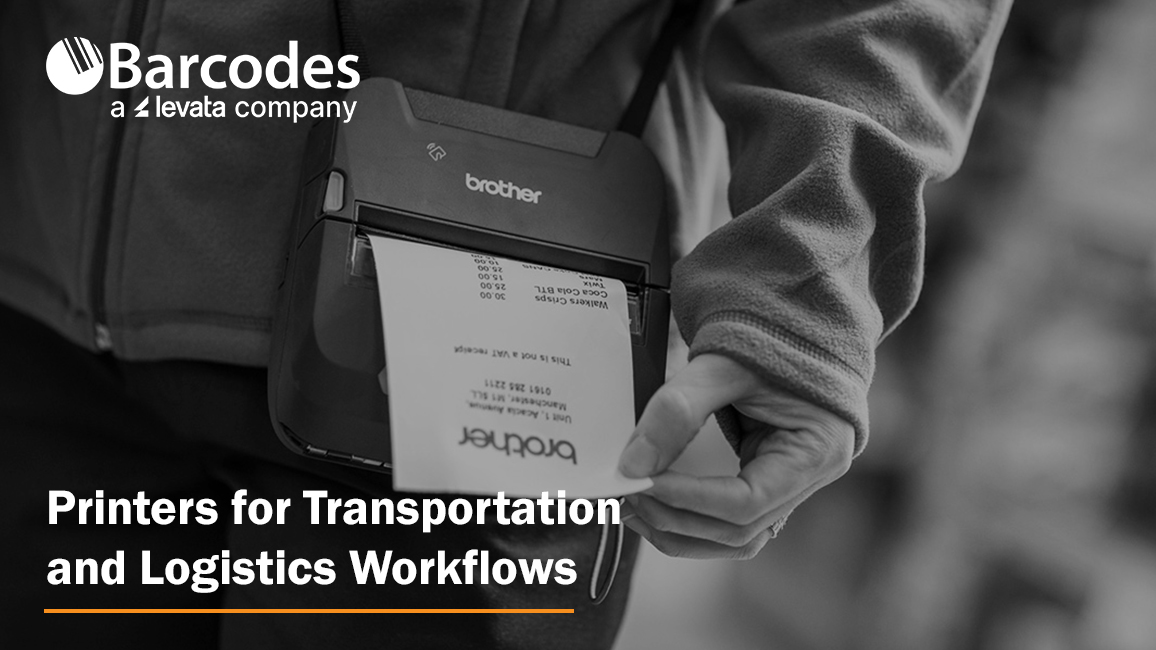
Transportation and logistics companies are navigating a challenging road. E-commerce continues to increase demand for fast, cost-effective delivery, while driver shortages, rising operating costs, supply chain disruptions, and evolving safety and compliance requirements put additional pressure on fleets and logistics operations.
For carriers, distributors, and delivery organizations, doing more with fewer resources requires more than simply adding vehicles or workers. It requires greater visibility, streamlined workflows, and technology that helps drivers and warehouse teams complete essential tasks quickly and accurately.
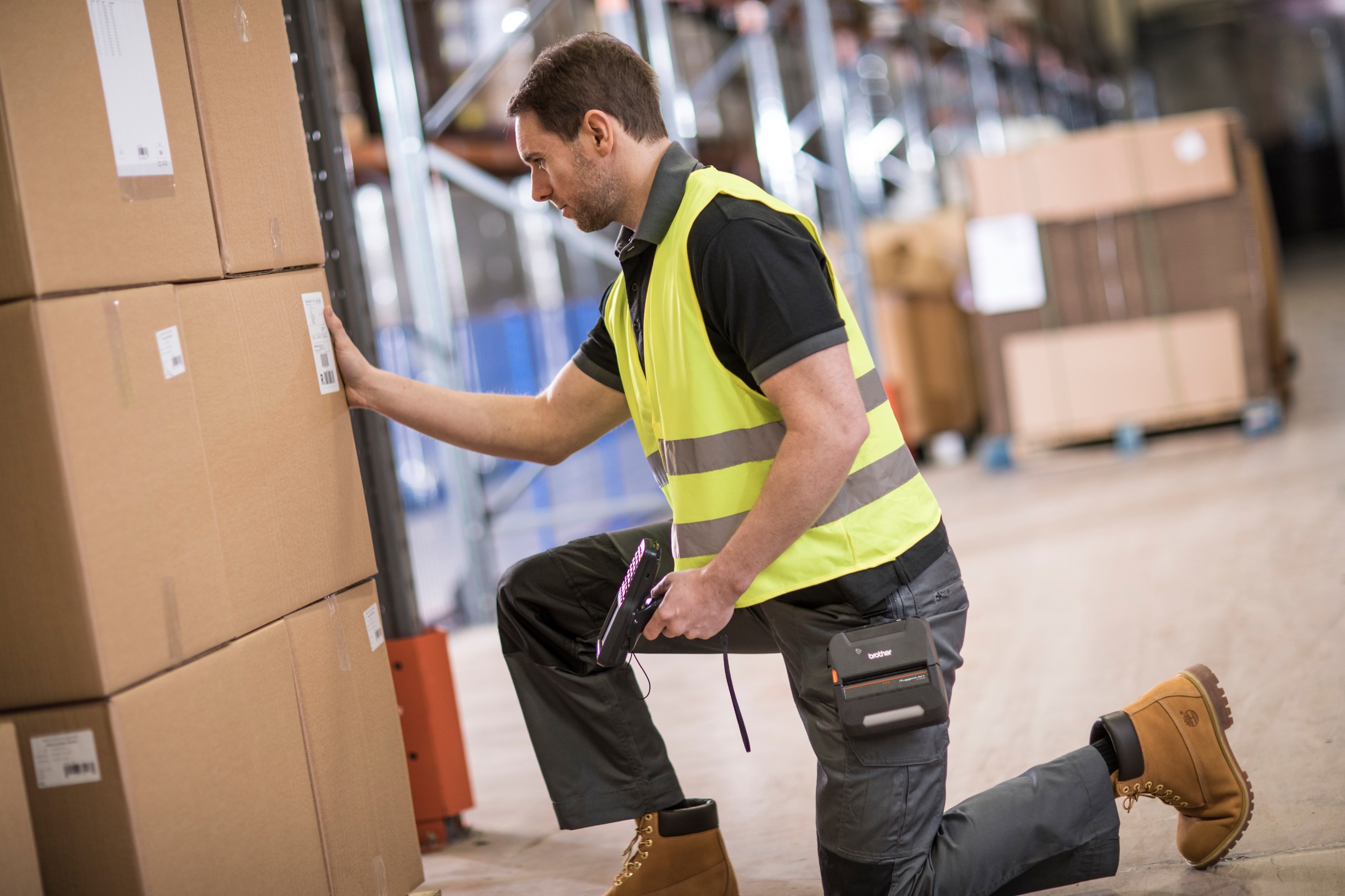
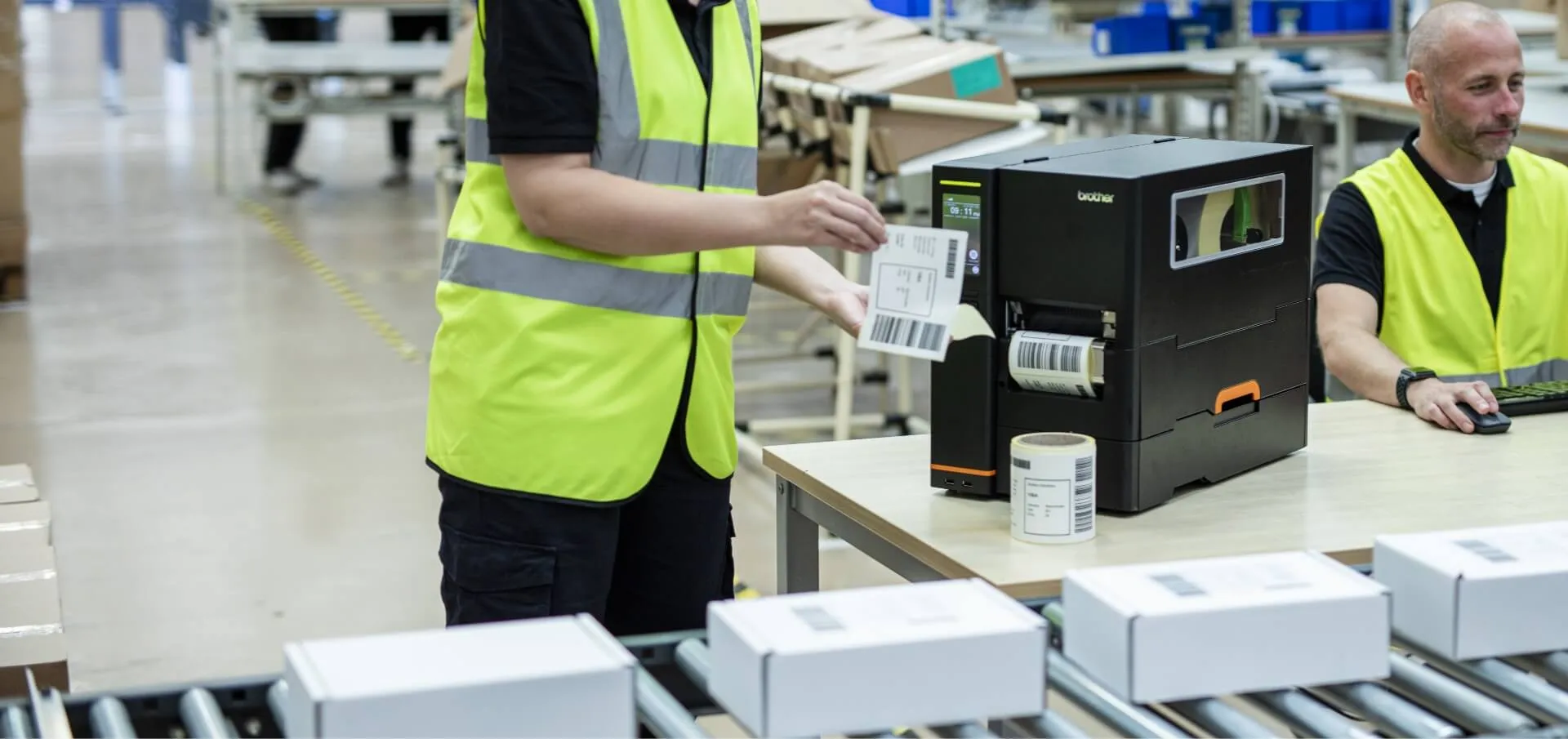
A delivery driver needs a receipt at the customer site; a warehouse associate needs a scannable shipping label at the dock. Printing in the wrong place can slow both handoffs. Brother offers different printers for each job: a mobile printer for field labels and receipts, a portable printer for full-page documents in a vehicle, and desktop or industrial printers for warehouse labeling. The right choice depends on output size, print volume, label life, and the devices that send the print job.
Addressing the Transportation and Logistics Labor Challenge
The driver shortage remains a significant concern for the transportation industry. Retirements, turnover, and growing fulfillment demands are putting pressure on companies to get more productivity from every driver and vehicle.
At the same time, drivers face physically and emotionally demanding jobs. Technology that eliminates unnecessary administrative work can help make their jobs easier while allowing them to spend more time focused on the road and the delivery itself.
Benefits of Mobile and Industrial Thermal Printers
Mobile printers from pickup to delivery
- Visibility: When connected to transportation systems, mobile printers produce labels and receipts from current shipment records at each handoff, giving drivers and customers a physical reference.
- Fewer errors and delays: Print return labels, proof-of-delivery receipts, and delivery paperwork at the stop, reducing manual transcription and trips to a fixed workstation.
- Compliance and safety: Make manifests, bills of lading, incident forms, and appropriate warning labels available on the road. Verify the printed format against applicable requirements.
Desktop and industrial printers in the warehouse
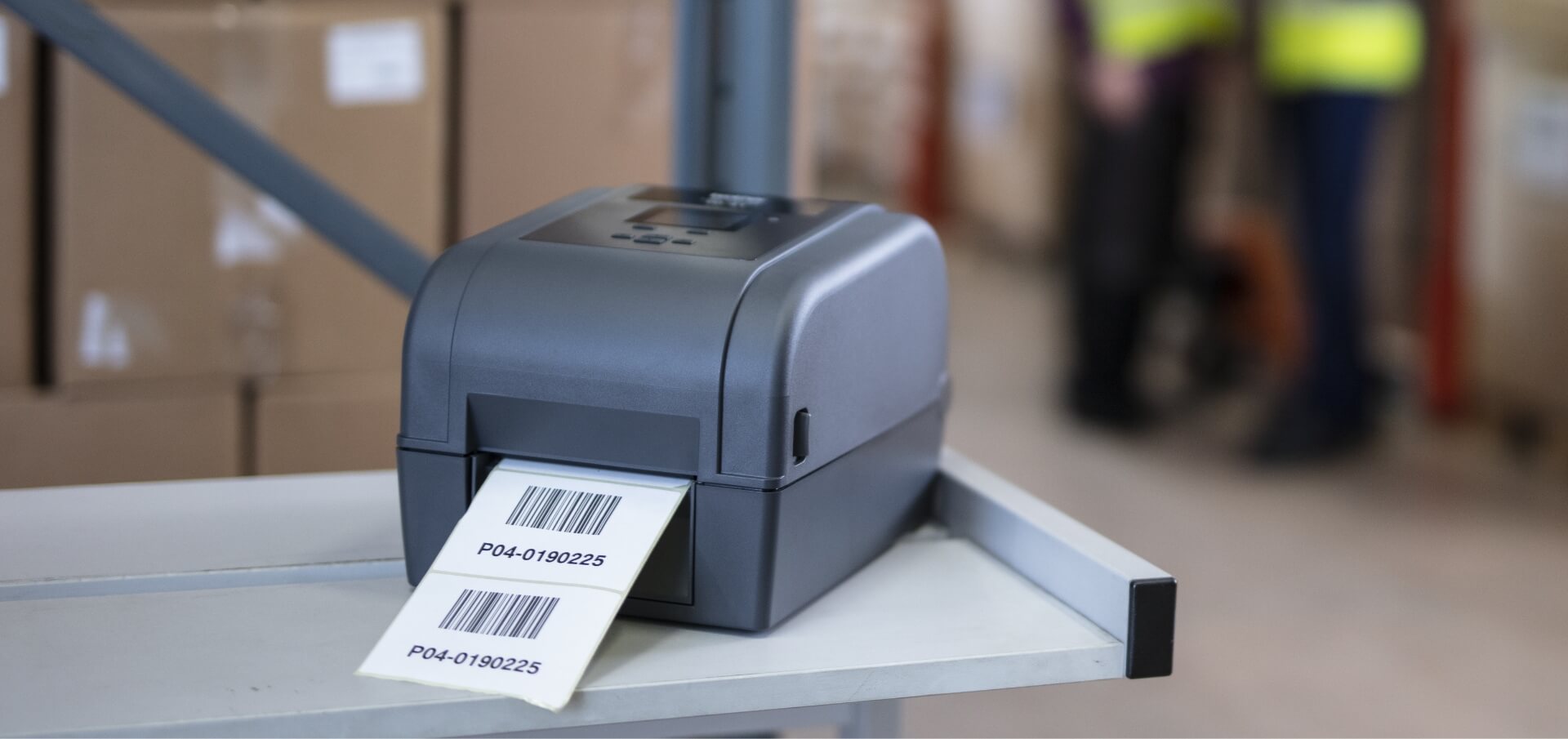
- At warehouse and distribution stations: Print high-volume shipping, inventory, and barcode labels near packing benches and docks so associates can identify goods as work progresses.
- For high-volume demand: Industrial printers support continuous label production on busy lines; compact desktop units provide on-demand output at smaller or distributed stations.
Which Brother Printer Fits Your Logistics Workflow?
Start with the document or label you need to produce, then match the printer to where and how often it will be used.
| Brother series | Best fit | Output and method | Main buying consideration |
| RuggedJet 4 | Mobile pickup, delivery, route dsd work | Labels, receipts; direct thermal | Portable and rugged; optional wireless and mounting options by model |
| PocketJet 8 | In-cab full-page mobile paperwork | Up to 8.5-inch-wide documents; direct thermal | Full-page output; optional power, battery, and paper bundle |
| TD 4 | Packing stations, smaller docks | Four-inch-class labels; direct thermal or thermal transfer by model | Choose the right print method and connections |
| Brother Titan Industrial Printer | Busy shipping lines, distribution centers | Industrial high-volume labels; direct thermal or thermal transfer dual printing ability | Built for sustained volume; allow space for media and ribbons |
A fleet may need more than one format. For example, a driver can print a proof of delivery receipt at dropoff, while a shipping station prints fresh carton labels and an in-cab unit handles full-page customer paperwork. Map those handoffs before choosing hardware for every location.
Brother Printer Reviews for Fleets and Warehouses
RuggedJet 4 for labels and receipts at the point of work
The Brother RuggedJet 4 is the practical choice when drivers need a label or receipt at a pickup or delivery stop. A driver could scan a returned parcel and print its identifier before leaving the customer site. Its direct thermal design avoids ink and ribbons, and its rugged housing suits route work. Selected models offer Bluetooth, Wi-Fi, and NFC pairing; check the specific configuration against your handhelds and vehicle mounts. Our assessment: it brings four-inch-class label printing to the field, but its thermal media and compact format do not replace full-page paperwork or longer-life warehouse labels. Test battery life and rugged design on a typical route.
PocketJet 8 for full-page documents in the cab
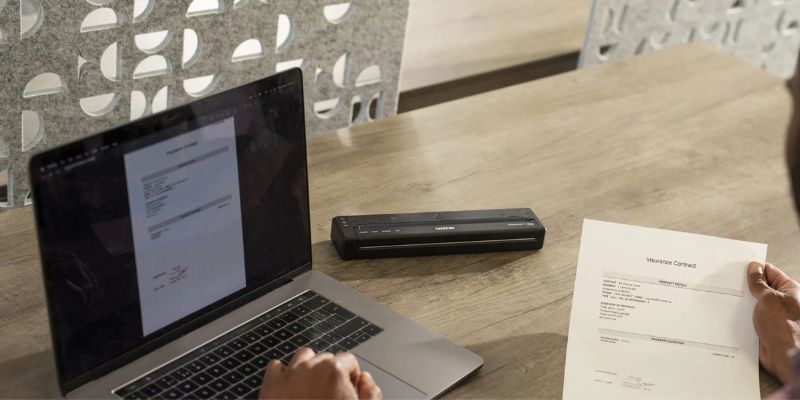
The Brother PocketJet 8 serves a different purpose: full-page invoices, delivery records, manifests, or other documents up to 8.5 inches wide. The slim portable printer uses thermal paper, so drivers do not carry ink cartridges. USB-C is available across the line, with Bluetooth and Wi-Fi on selected models. Our assessment: it is a strong in-vehicle option where a full-page physical document is necessary. Review the bundle carefully; some printer-only SKUs require a separate battery or vehicle power accessory. Confirm your document template and paper format before installing it in a cab.
TD 4 for desktop shipping and inventory labels
The Brother TD 4 series puts label printing at a packing bench or smaller shipping station. Choose a direct thermal model for routine, short-use shipping labels, or a thermal transfer model when compatible media and ribbons are needed for longer-lived identification. Network, wireless, cutter, and peeler options vary by SKU. Our assessment: TD 4 is a flexible middle ground when labels should print near the operator, though buyers must specify the exact print method rather than assume every TD 4 has ribbon capability. It suits distributed stations that do not need an industrial printer at each bench.
Titan for higher-volume industrial labeling
The Brother Titan Industrial Printer series is intended for busy distribution and shipping lines. Titan thermal transfer printer models can use ribbons with suitable label stock for durable barcodes, and representative models also support direct thermal printing. The TJ-4021TN, for example, offers 203 dpi and up to 10 inches per second; 300 dpi options prioritize finer detail. Ethernet is standard on that model, with optional accessories such as a peeler or cutter. Our assessment: Titan is the stronger fit for sustained label production and varied media, while a TD 4 may be simpler for a lighter-duty station.
Frequently Asked Questions
Can a Brother mobile printer print from a driver handheld?
Yes, when the selected printer, handheld, app, and connection are compatible. Verify Bluetooth or Wi-Fi support on the exact RuggedJet and PocketJet configuration and test your production workflow before deployment.
Does PocketJet 8 require ink or a battery?
It does not need ink or toner; it uses compatible thermal media. A battery is optional on some configurations, so check whether your order includes one or instead uses vehicle or external power.
Does printing a receipt update the transportation management system?
No. A printer creates the physical output; the application and its integration must record the transaction and synchronize delivery data. Test both steps together.
What labels work for cold or outdoor conditions?
Choose media and adhesive rated for the surface, temperature, moisture, and expected lifespan. For longer-lived labels, evaluate thermal transfer stock and ribbon, then test barcode readability in the actual environment.
How should we compare total printing cost?
Calculate printer and accessory costs alongside media, ribbons, batteries, maintenance, and staff time. Use expected volume and a short pilot to compare cost per usable label or document.
Ready to equip the route and the dock? Compare the four Brother printer series above, then bring your print volumes, media needs, devices, and sample labels to Barcodes, Inc. We can help identify the configuration that fits each handoff in your transportation and logistics operation.
Build a More Efficient Transportation Operation
The transportation and logistics industry face growing pressures. Mobile and industrial printing solutions can offer relief by reducing administrative work, improving documentation accuracy, supporting compliance, and helping drivers and warehouse employees complete tasks without unnecessary trips back to a fixed workstation.
Brother offers printing solutions across the transportation and logistics workflow—from RuggedJet mobile printers for portable labels and receipts, to PocketJet mobile printers for full-page documents, TD 4 desktop thermal printers for everyday warehouse labeling, and Titan industrial printers for high-volume label production.
Ask Barcodes, Inc. how to bring reliable printing capabilities closer to where work actually happens.
Item & Asset Tracking: Transform Inventory Chaos with BarTender® Track & Trace™
What if your team could find a critical asset in minutes instead of spending hours searching? What if inventory could be received and counted with less manual effort, while management had a clear view of what was on hand, where it was located, and how it was being used?
For organizations managing inventory, equipment, tools, parts, or other valuable assets, visibility has a direct impact on efficiency, costs, and accountability.
BarTender® Track & Trace™ provides item and asset tracking that turns hard-to-find inventory into instantly discoverable assets. It combines barcode and RFID technology with mobile tools, dashboards, facility maps, and reporting, helping organizations count, find, and report on inventory and assets across one or multiple facilities.
The goal is simple: transform item and asset chaos into organized, simplified, and efficient operations.
When Do You Need Item & Asset Tracking?
Manual inventory tracking can create problems long before anyone realizes there’s a problem.
Employees spend valuable time searching for equipment. Inventory counts get delayed or inaccurate. Items move between locations without records being updated. And when something can’t be found, organizations sometimes buy a replacement even though the original asset is still somewhere in the operation.
BarTender Track & Trace is built for organizations that need:
- Real-time inventory and asset visibility across one or multiple facilities
- Better accountability for item movement and location
- Faster, more accurate receiving and inventory counts
- Greater value from existing RFID and barcode investments
- Better reporting and visibility to reduce unnecessary capital expenditures
By replacing manual processes with connected item-level tracking, organizations can gain better control without adding operational complexity.
Count: Simplify Receiving and Inventory
Inventory accuracy starts with accurate receiving and counting. When these processes depend on manual data entry and individual scans, errors and delays add up fast.
Track & Trace uses barcode and RFID technology to streamline receiving and inventory processes.
With One-Scan Receiving, employees can quickly capture RFID- or barcode-labeled items as inventory arrives. RFID can also identify tagged items on shelves, in boxes, and on pallets, cutting down the effort needed for traditional inventory counts.
Track & Trace also supports instant inventory cycle counts and zone-based counting, helping teams catch discrepancies and keep records accurate.
Key capabilities include:
- One-Scan Receiving
- Instant Inventory Cycle Counts
- Discrepancy Detection
- Advanced Shipment Notice (ASN) support
- Zone-Based Assignment
The result: less time spent counting and reconciling inventory, and fewer opportunities for manual error.
Find: See and Locate Assets on Demand
Finding inventory and equipment shouldn’t require a scavenger hunt.
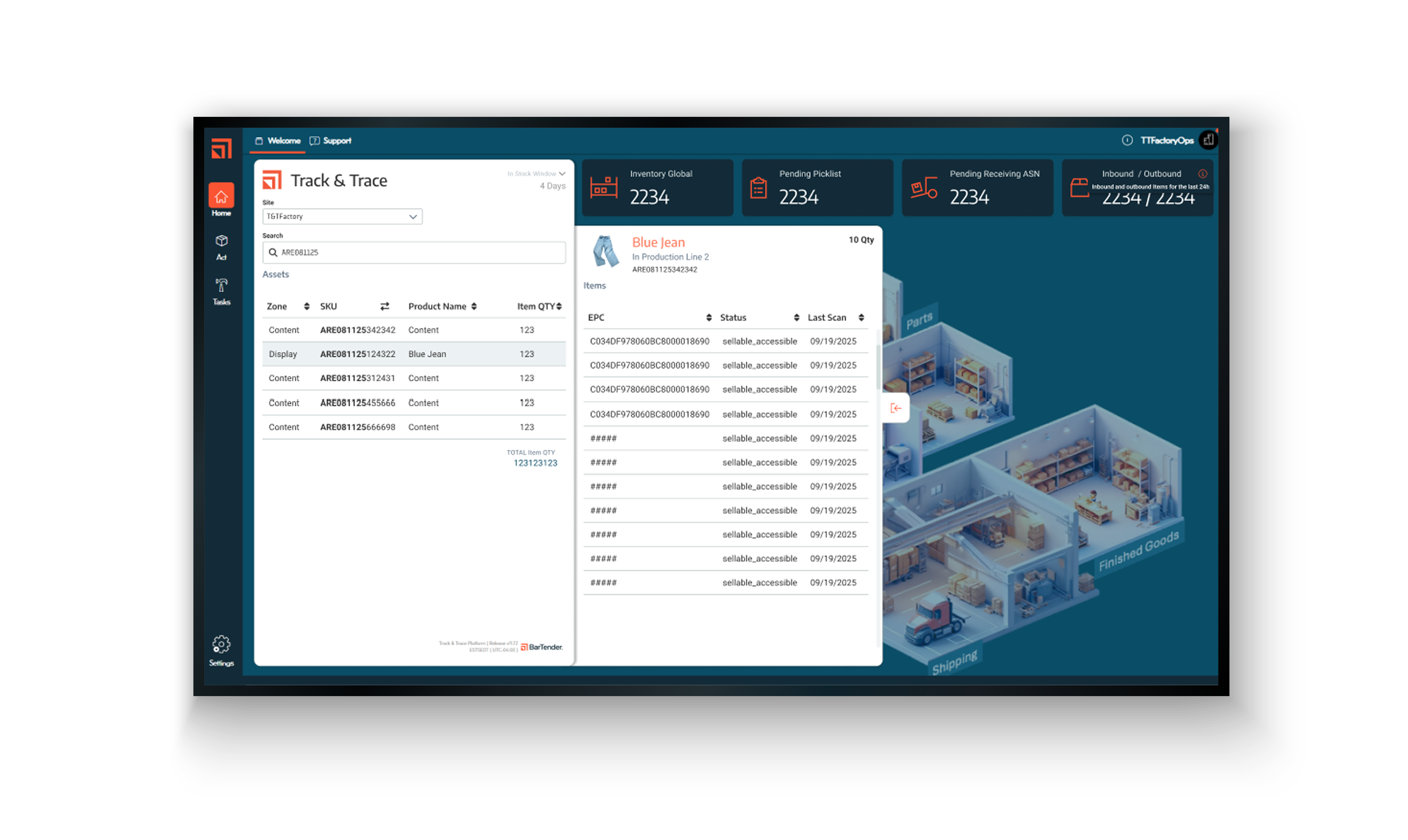
Track & Trace gives teams item-level visibility so employees can quickly see where assets are located and where they were last seen. Interactive facility and zone maps show inventory visually, while search tools make it easy to locate specific items.
For particularly hard-to-find assets, Find My Item™ combines RFID with audible and visual cues to help users zero in on an item’s exact location.
Track & Trace helps organizations:
- Search for specific items quickly
- View items by facility and zone
- Locate hard-to-find assets using RFID
- Review location history
- Manage inventory across multiple sites
- Create and fulfill picklists while updating inventory
That means teams spend less time searching and more time using the equipment and inventory they need. This visibility can help reduce equipment losses, minimize operational delays, and avoid duplicating purchases of items that are just hard to locate.
Report: Turn Inventory Data Into Actionable Insights
Accurate tracking data becomes even more valuable when it’s easy to turn into useful information.
Track & Trace provides dashboards and reporting tools that give teams visibility into inventory status, locations, discrepancies, and movement. Instead of spending hours compiling information from spreadsheets and disconnected systems, users can access and generate what they need faster.
Organizations can use reporting to understand where inventory is located, identify discrepancies, review movement history, and make better decisions about equipment and resources.
Key reporting capabilities include:
- Status dashboards
- One-click report generation
- Zone and category reporting
- Discrepancy reporting
- Movement audit trails
- Easy data export
Reports can be filtered for specific business needs and exported as CSV files for use with other systems.
Reduce the Hidden Costs of Missing Inventory
The cost of lost or misplaced inventory isn’t limited to the value of the item.
There’s also the employee time spent looking for it. The potential delay to a customer or production process. The cost of purchasing a replacement. And the administrative effort required to figure out what happened.
Better item and asset tracking addresses those costs by making inventory more visible and accountable. Track & Trace is designed to help organizations reduce time spent searching for assets, cut equipment losses, and eliminate duplicate purchases. According to BarTender’s stated solution benefits, the platform can deliver ROI in weeks, with payback in less than six months.
Improve Accountability Across Locations
As organizations grow, inventory visibility becomes harder to maintain. Items move between departments, zones, buildings, and facilities. Without consistent processes, it’s harder to know where inventory is or who is responsible for it.
Track & Trace provides tools for managing item movement and maintaining location history across operations. Facility and zone maps give a visual view of inventory, while movement audit trails document changes. Together, they create a more complete history of an item’s lifecycle and support accountability and compliance requirements.
For organizations with multiple facilities, this visibility is especially valuable. Teams can keep track of inventory across locations while using consistent tracking processes.
Applications and Use Cases for Item & Asset Tracking
BarTender Track & Trace helps organizations improve inventory visibility and asset accountability across a range of industries. From production floors to healthcare facilities and field service operations, the solution adapts to different workflows and tracking requirements.
Manufacturing
Manufacturers can use item and asset tracking to improve visibility throughout production and across multiple facilities.
- Track tools and equipment across production areas or sites
- Manage work-in-process inventory
- Document quality control checkpoints
Healthcare
Healthcare organizations can use asset tracking to improve equipment visibility, utilization, and accountability while supporting documentation requirements.
- Track medical equipment and other critical assets
- Optimize asset usage and availability
- Support compliance documentation
Warehouse & Distribution
For warehouses and distribution operations, accurate tracking helps improve receiving, inventory control, and order fulfillment.
- Verify receiving and shipping activities
- Improve inventory accuracy
- Support pick-and-pack operations
Field Services
Field service organizations need to know what equipment and inventory is available, where it’s located, and whether the right items are going to the job.
- Allocate and track tools and equipment
- Manage vehicle inventory
- Verify assets during service calls
What’s New in BarTender Track & Trace 12.5?
For organizations managing multiple sites, consistency and configuration management matter just as much as item tracking itself.
BarTender Track & Trace Version 12.5 introduces enhancements that make it easier to configure and manage locations and zones, reducing manual effort and increasing control across the tracking environment.
Standardize Site Configurations With Bulk CSV Import and Export
Track & Trace 12.5 lets administrators and integrators export location and zone configurations to structured CSV files, make changes in bulk, and import the updated configurations.
This simplifies:
- Creating new sites from existing configurations
- Standardizing location and zone settings
- Updating multiple configurations at once
- Backing up configurations for recovery and audit purposes
Administrators can also validate configuration files and review proposed updates before applying them.
Support GS1 Compliance With Built-In Validation
Expanded GS1 support makes it easier for integrators to generate, encode, and print GS1-compliant labels directly from Track & Trace.
Enhanced Serialization API capabilities show which GS1 standards and input fields are supported, while built-in validation checks inputs against the selected standard’s rules before generating labels. Supported output formats include EPC URN, GS1-128, Digital Link, and more.
Strengthen Audit Readiness With Configuration History
Version 12.5 also introduces a centralized history of configuration changes.
Administrators can see what changed, who made the change, and when it happened across Inventory, Lifecycle, and Master Data settings. Automatically recorded, chronological histories give more visibility into configuration changes and support internal governance and compliance efforts.
Refresh Site Information on Demand
Site managers can now manually refresh the Site Configuration Dashboard to get a more current view of locations, zones, and related information. A timestamp shows when the dashboard was last refreshed, so it’s easy to confirm how current the displayed data is.
Build a More Visible, Efficient Operation
Effective inventory and asset tracking isn’t just about knowing how many items you have. It’s about knowing where those items are, how they move, and what that information means for your operation. BarTender Track & Trace brings these capabilities together through three essential functions:
- Count inventory faster and improve accuracy.
- Find items and assets when and where they’re needed.
- Report on inventory data to make smarter, more informed decisions.
With barcode and RFID capabilities, mobile tracking, facility maps, dashboards, reporting, and new Version 12.5 configuration tools, Track & Trace provides a scalable approach to item and asset tracking across individual sites or complex multi-site operations.
The result: ROI realized in weeks and payback in less than six months, driven by fewer labor hours spent searching and counting, fewer equipment losses and duplicate purchases, and greater utilization of assets you already own.
Contact Barcodes, Inc. to learn more and get help transforming item and asset chaos into an organized, efficient operation with BarTender Track & Trace.