


How to Set Up Your Zebra Thermal Printer for Fast and Efficient Labeling
There’s nothing more frustrating than a printer that just won’t cooperate, especially when your business depends on it. Whether you’re shipping products, managing inventory, or labeling retail items, time is money. And your Zebra thermal printer? It’s built for speed, if it’s set up right.
That’s where we come in. This guide walks you through how to set up your Zebra thermal printer for fast and efficient labeling. From unboxing to calibration and everything in between, we’ll help you skip the guesswork and get straight to printing high-quality labels. You’ll find helpful information here for setting up and optimizing your Zebra thermal printer.
Unboxing and Initial Setup: Your Zebra Printer Out of the Box
The moment your Zebra label printer arrives, it’s tempting to plug it in and start printing. But first, let’s make sure you’ve got all the right pieces.
Inside the box, you’ll typically find:
- The Zebra label printer unit
- Power cord and adapter
- USB and/or Ethernet cable (depending on the model)
- User manuals and quick-start guide
- A sample roll of labels (sometimes included)
Note: Included accessories may vary by model.
Now, let’s connect it properly. If you’re using USB, plug the cable directly into your PC or laptop. For Ethernet, connect it to your network hub or router. If your model supports Wi-Fi, we’ll handle that in the advanced section.
Power on the printer and wait for it to initialize. You should see lights or a status display that confirms it’s ready.
Installing Printer Drivers & Zebra Setup Utilities
Before anything prints, your computer needs to speak the same language as your printer. That’s where drivers and software come in.
Visit the Zebra Drivers & Support section of the Barcodes, Inc. website to download the correct drivers for your model. We recommend installing Zebra Setup Utilities, which helps configure the printer quickly. The software displays a list of all supported Zebra printer models, making it easy to select the right one for your setup.
Pro tip: Use Zebra Setup Utilities for driver installation, port selection, and printer configuration all in one place. You can get it here.
Whether you’re on Windows, macOS, or Linux, Zebra has documentation for each OS. Be sure to choose the version that matches your system and printer model.
Once installed, open Zebra Setup Utilities to test connectivity and begin configuration.
Loading Labels and Ribbons: Do It Right the First Time
This step is crucial. Improper media loading can cause misprints, alignment issues, and wasted labels.
After loading the labels, check that the label width is set correctly in your printer setup to ensure proper alignment and avoid misprints.
For Direct Thermal Printing:
No ribbon is needed. Just open the media compartment, drop in your label roll, and feed the labels under the guides and through the sensor path. Make sure the labels face up.
For Thermal Transfer Printing:
You’ll need to load both a label roll and a ribbon roll. The ribbon goes on the top spindle, and it should wrap around the printhead and onto the take-up spindle. Be sure the ribbon feeds smoothly without wrinkles.
Confused about which type you need?
Explore Zebra printer supplies to find labels and ribbons compatible with your model.
Once loaded, close the cover and allow the printer to run a few labels to check feed alignment.
Calibrating the Printer: Say Goodbye to Skipped or Misaligned Labels
Calibration ensures your printer correctly detects label gaps or marks.
With Zebra printers, you can run Zebra Smart Calibration directly from the control panel or via Zebra Setup Utilities.
To auto-calibrate:
- Hold the feed button until the status light flashes twice.
- The printer will feed a few labels and stop.
Alternatively, open Zebra Setup Utilities, click “Calibrate Media,” and follow the on-screen instructions.
If you’re seeing misprints, adjust the media sensor settings via the software to fine-tune label detection. Calibration eliminates ghost printing, jams, and wasted stock.
Configuring Label Settings: Get Crisp, Accurate Prints
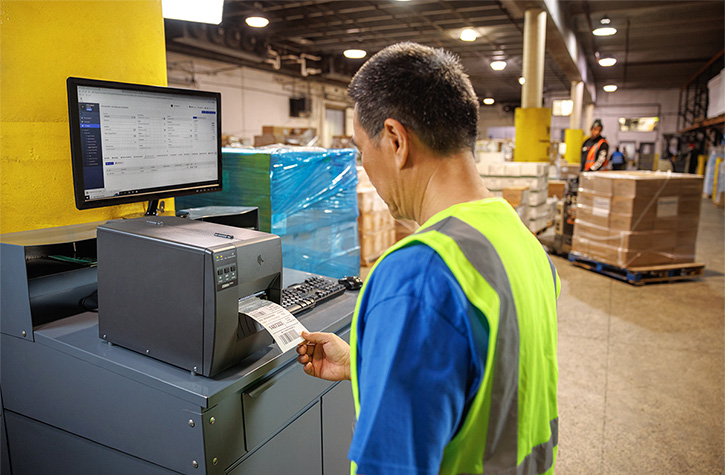
Now it’s time to tell your printer what kind of labels you’re using.
Inside Zebra Setup Utilities, you’ll find options to configure:
- Label size and orientation
- Print darkness and speed
- Media type: continuous vs. gap
Important: If using ZPL label printing configuration, ensure your label format code matches your label size and type. Incorrect ZPL commands can cause skewed output.
For best results, print a test label and check:
- Are the labels centered?
- Is the print sharp?
- Are labels advancing properly?
If not, revisit your settings before moving forward.
Connecting to Shipping Software or Labeling Platforms
Your Zebra printer can integrate with nearly every major platform in e-commerce, retail, and logistics.
Compatible platforms include:
- Shopify
- Amazon Seller Central
- ShipStation
- FedEx Ship Manager
- UPS WorldShip
For professional labeling, tools like BarTender or NiceLabel let you design and manage labels at scale. These programs also support Zebra printers out of the box.
In enterprise settings, you might opt for API or network printing via a Zebra print server or cloud-based system.
Once connected, perform a print test from your chosen platform to verify formatting and label output.
Troubleshooting Common Issues
Even with a perfect setup, hiccups can happen. Here’s how to fix the most common ones.
Label Jams
Check for obstructions inside the media path. Power off the printer before removing jammed labels.
Faded prints
Usually caused by low darkness settings or worn ribbon. Try increasing print darkness or replacing the ribbon.
Connectivity issues
If the printer isn’t detected, reinstall the driver and check the USB/Ethernet cable. Confirm the port is enabled in Zebra Setup Utilities. Sometimes, network security settings such as firewalls or security software can block printer connections, so check these settings to ensure access is not restricted.
Misaligned labels or ghost printing
Run another calibration or adjust label size settings. Ghost printing can also mean the printhead is dirty or worn.
If issues persist after troubleshooting, Learn how Levata Repair Services for Barcodes Inc. can help. Be sure to include any error messages or a trace id if available, as this information can help diagnose and resolve the problem more efficiently.
Maintenance Tips for Long-Term Efficiency
Routine care keeps your printer running like new. Here’s what to focus on:
- Clean the printhead every time you replace a roll of labels or ribbon. Use Zebra cleaning supplies to safely remove residue.
- Replace worn parts like the platen roller when labels start to slip or print quality degrades.
- Perform Zebra firmware updates regularly to ensure compatibility with new software and devices.
You can check for updates and install them using Zebra Setup Utilities or by visiting Zebra’s firmware page.
Advanced Setup Tips: Take It to the Next Level
Ready to go beyond the basics? These pro tips help you scale your labeling operations.
Batch printing: Configure bulk printing settings within ZebraDesigner or your shipping software. Make sure your PC’s spooler settings support large jobs. You can also use the send feature to transfer configuration files or batch templates directly to the printer, making it easier to update settings in the field.
Custom templates: Use ZebraDesigner or BarTender to create templates for recurring labels, like SKUs, barcodes, or QR codes. When managing templates, consider making configuration changes based on specific conditions, such as adjusting security or performance settings for different environments.
Wireless setup: If your printer supports it, configure Wi-Fi or Bluetooth via the control panel or Zebra Setup Utilities. For Bluetooth models, pair the device with your PC or tablet, then select it as the default printer.
For advanced integration, developers can use API access or developer tokens to authenticate, manage, and troubleshoot Zebra printer configurations. This allows for automated changes and monitoring under various conditions, streamlining complex deployments.
FAQs
How do I install Zebra Setup Utilities and drivers?
Visit Barcodes Inc Zebra Drivers & Support, download the software for your model, and follow the install wizard prompts.
What’s the best way to load media and ribbon in a Zebra printer?
Direct thermal printers require only labels. Thermal transfer models need both labels and a ribbon, load the ribbon above the printhead and ensure smooth feeding.
How do I calibrate my Zebra thermal printer for label accuracy?
Hold the feed button until the light flashes twice, or run calibration through Zebra Setup Utilities.
Why isn’t my Zebra printer showing up after I plug it in?
Check the USB or Ethernet connection, reinstall the drivers, and make sure your OS recognizes the printer in Device Manager or Print Settings.
How can I connect my Zebra printer via USB, Ethernet, or Bluetooth?
Use Zebra Setup Utilities to select your preferred connection type and follow the setup steps. Bluetooth models may require pairing through your device’s Bluetooth settings.
How often should I clean my printhead for fast, efficient labeling?
Clean the printhead every time you change labels or ribbons to maintain crisp print quality and avoid misprints.
Conclusion: Set It Up Right, Label Smarter
Setting up your Zebra thermal printer correctly makes a huge difference. You’ll print faster, waste fewer labels, and avoid the pain of mid-shift troubleshooting.
From software installs to calibration and maintenance, every step contributes to a smooth labeling experience. Remember to revisit the basics, use the right supplies, run auto-calibration regularly, and update your firmware. Need more help? Reach out to Barcodes Inc for expert guidance.